A QR code is the bridge between your presence in the real world and your digital page: you put it on your storefront, on restaurant tables, on a business card, or in an ad, and one tap of a camera takes your customer straight to your page. The problem is that a plain black-and-white QR code looks dull and says nothing about your brand. That is exactly why we built QR Studio inside Linkin1: a complete tool for designing a custom, branded QR code in your brand colours, with your logo in the centre and professional shapes — all with a live preview and no external software.
In this guide we take you on a full tour of the QR code designer in Linkin1 and explain every option, so you walk away with a branded QR code that reflects your identity and still scans reliably.
What is QR Studio?
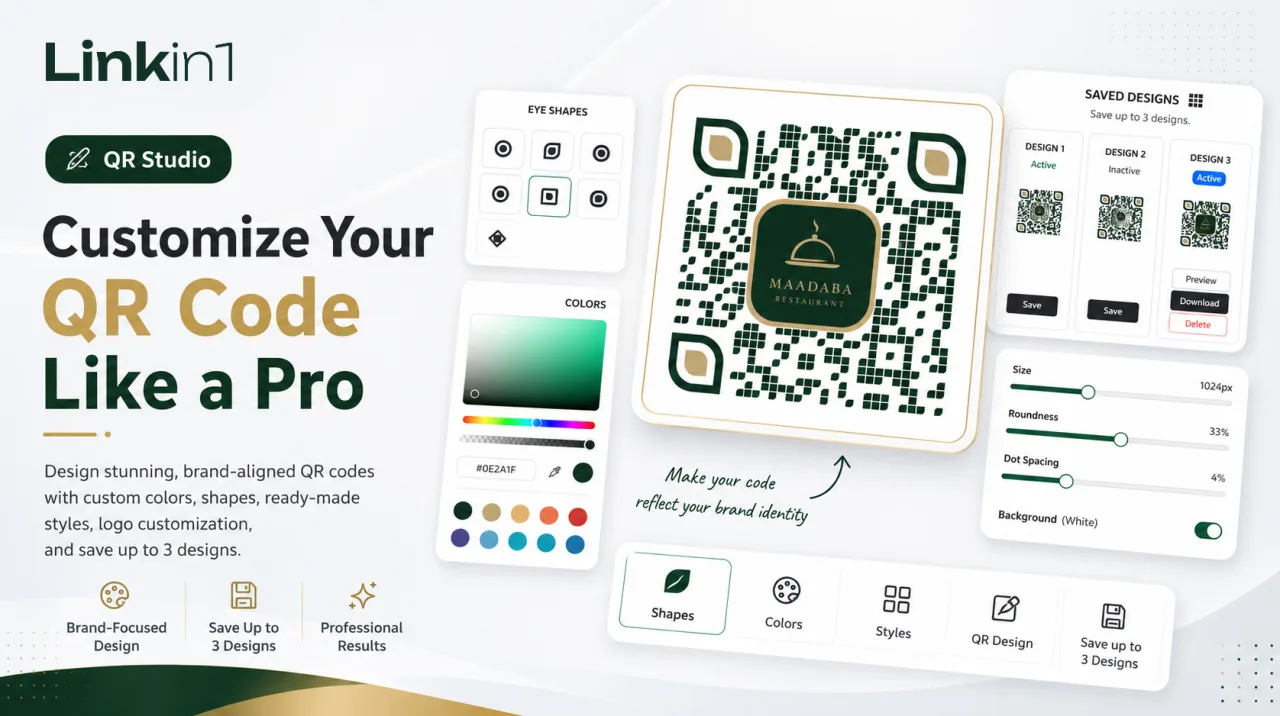
QR Studio is the QR code designer built into your Linkin1 dashboard. Your QR code always points to your Linkin1 page — but how it looks is now entirely yours: the colours, the dot shapes, the eyes (the three corner squares), the logo in the centre, the frame, and the caption under the code. Every change appears instantly in the preview, and you can save up to 3 designs and return to them any time.

A live preview: design while you watch the result
The best part of the QR code designer is that every edit updates the preview in real time — no need to save and download just to see the look. We always recommend you scan the code with your phone before printing to make sure it reads cleanly — a golden rule once you add colours and a logo.
Ready-made presets in one click
If you are in a hurry or just want a starting point, the presets give you professional designs in a single click: Classic, Soft, Dots, Elegant, Sunset, Ocean, Mono and Neon. Pick the one closest to your taste, then refine it — each preset is simply a launch pad.
Dot (module) shapes
Instead of the usual solid squares, the QR code designer lets you choose the shape of the "module" the code is built from:
- Square — the classic, most scan-friendly look.
- Rounded / Extra rounded / Dots — a modern, softer feel.
- Classy and Diamond — a premium, distinctive touch.
- Vertical / Horizontal bars — a sleek linear pattern.
You can also control the gap between modules with a simple slider to fine-tune the code's density and clarity.
Colours and gradients: make the code your own
This is where real customisation begins. You can set the foreground (the dots) and background colours separately, or use a two-colour gradient with full control over the angle. Enter the colour code yourself (Hex) or pick it from the colour picker.
Most importantly, the tool shows an automatic contrast warning if the difference between the dots and the background is too weak — because poor contrast is the number-one reason QR codes fail to scan. This small touch stops you from printing a beautiful code that simply will not read.

The eyes (the three corner squares)
The "eyes" are the three large squares in the corners of the code, and they are among the most character-defining elements of the design. In QR Studio you control them independently:
- Outer frame shape: square, rounded, extra rounded, circle, leaf, leaf (mirrored), or diamond.
- Inner ball shape with the same set of options.
- Precise rounding for each element.
- An option to inherit the dot colour or set an independent colour for the eyes.

Put your logo at the heart of the code
Nothing builds trust and a professional feel like a QR code with a logo in the middle. In QR Studio you can:
- Use your profile picture automatically as the logo inside the code.
- Or upload your own image / logo.
- Control the logo size, its margin, and its rounding.
- Add a background behind the logo in a colour of your choice to make it stand out.
The tool recommends using error-correction level H when you add a logo, so the code stays scannable even though part of its centre is covered — a technical detail most free QR generators ignore.
Caption, frame, and advanced settings
The tool rounds out the picture with three extra sections: a caption under the code (like "Scan to order" or your store name), a frame around the code, and advanced settings covering the error-correction level and the outer margin (the quiet zone) that guarantees a clean read.
Save up to 3 designs and return any time
Once you land on the perfect look, save it into one of the three design slots with a name you choose (like "Storefront" or "Ramadan campaign"). The active design is the one used when the code is downloaded from your page, and you can overwrite or delete designs any time — perfect if you run more than one campaign or occasion.

Download in high quality: PNG or SVG
When you are done, download your code as PNG at sizes up to 1024px for digital use, or as a vector SVG that stays razor-sharp at any size — the best choice for printing on signage, bags, or large storefronts.
Who is QR Studio for?
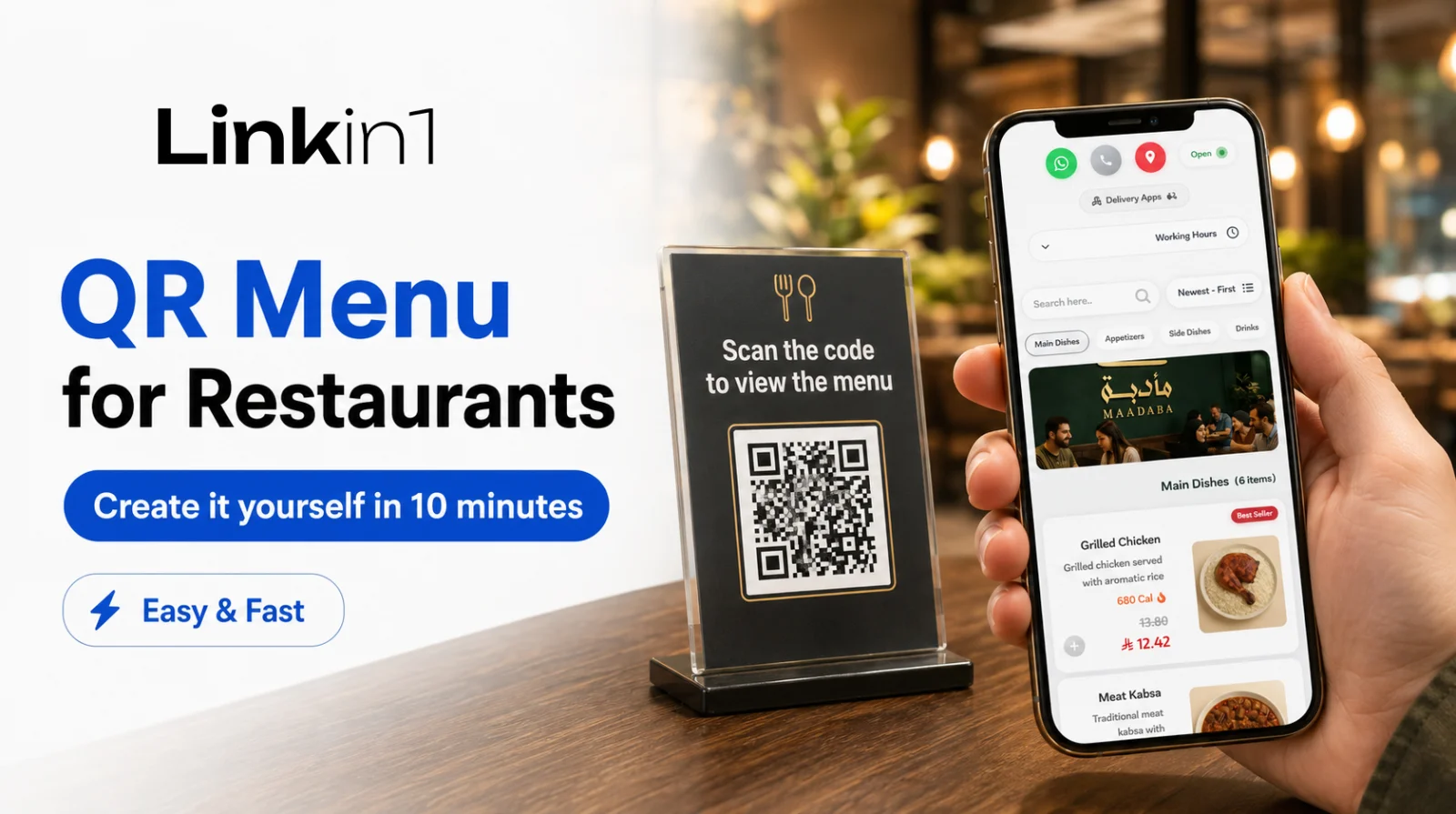
- Restaurants and cafés — an elegant table code that opens the e-menu instantly.
- Shops and businesses — a code in your brand identity on your storefront and packaging.
- Creators and influencers — a distinctive code that sends their audience to all their links.
- Events and exhibitions — a code per campaign, with multiple saved designs.
How to get started
- Sign in to your Linkin1 dashboard.
- From the side menu, choose QR code designer.
- Start from a preset or design from scratch: colours, shapes, eyes, and logo.
- Watch the live preview and scan the code with your phone.
- Save the design and download it as PNG or SVG.
Tips to keep your code scannable
- Keep strong contrast between the dots and the background (dark on light usually wins).
- Enable error-correction level H when using a centre logo.
- Do not make the logo too large, so it does not cover essential data.
- Test the code on more than one phone before the final print.
And if you run a restaurant or café, connect your code straight to the Linkin1 e-menu, or get to know the full platform in our guide to the best Arabic Linktree alternative.
Frequently asked questions
The bottom line
QR Studio turns a QR code from a dull technical element into a genuine part of your brand identity: colours and gradients, dot and eye shapes, a logo in the centre, a live preview, and up to 3 saved designs with high-quality downloads. Try it now inside Linkin1 and make your code reflect your brand everywhere it appears.