You put your page link in your Instagram bio, in a TikTok video description, in a Snapchat story, in a WhatsApp broadcast to your customer list, and in your email signature. A week later you open your analytics and see one number: 1,240 visits. A nice number — and one you cannot act on.
Which platform brought them? Was the video that took three hours to shoot worth it? Is the Snapchat campaign you actually paid for beating a free Instagram post? Without tracking links you will never know, and you will keep repeating whatever isn't working.
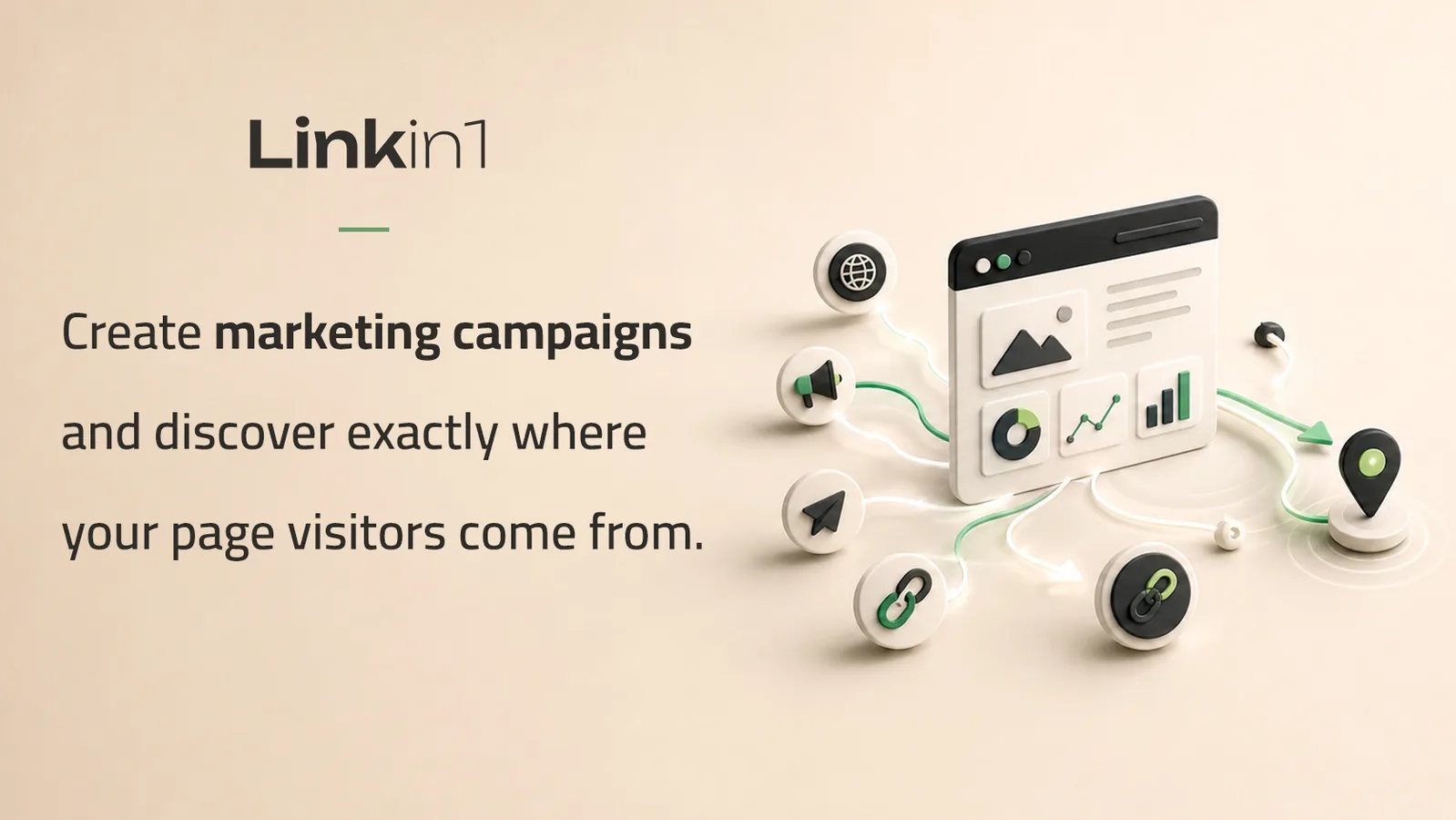
The Tracking Links extension in Linkin1 solves exactly this: you create a separate short link for every channel, all of them landing on the same page of yours, but each keeping its own counter. This guide covers the feature end to end — how it works, what the statistics actually show you, and what it deliberately does not do (that last part concerns your visitors' privacy, and we'll be direct about it).
What exactly is a tracking link?
A tracking link is a short link on the Linkin1 domain that looks like this:
https://www.linkin1.com/u/Dm0Snap
When someone taps it, they are sent straight to your Linkin1 page, and the click is recorded afterwards in the background. That word "afterwards" matters: the redirect goes out first and the statistics are written only once the browser has already started navigating — so the visitor never waits on the logging, not even for a fraction of a second.
One thing to be clear about up front, so you don't build the wrong expectation: a tracking link always points at your own Linkin1 page. This is not a general URL shortener you can point anywhere; it is a tool for measuring the campaigns you run to promote your page. And the destination is read from your account settings on every single click — so if you later change your page's link, the short links you already handed out will not break. They follow the new address automatically.
Why isn't one link enough for everything?
Because a single link collapses every source into one number you can never take apart again. Create one link per channel and marketing turns from guessing into measuring:
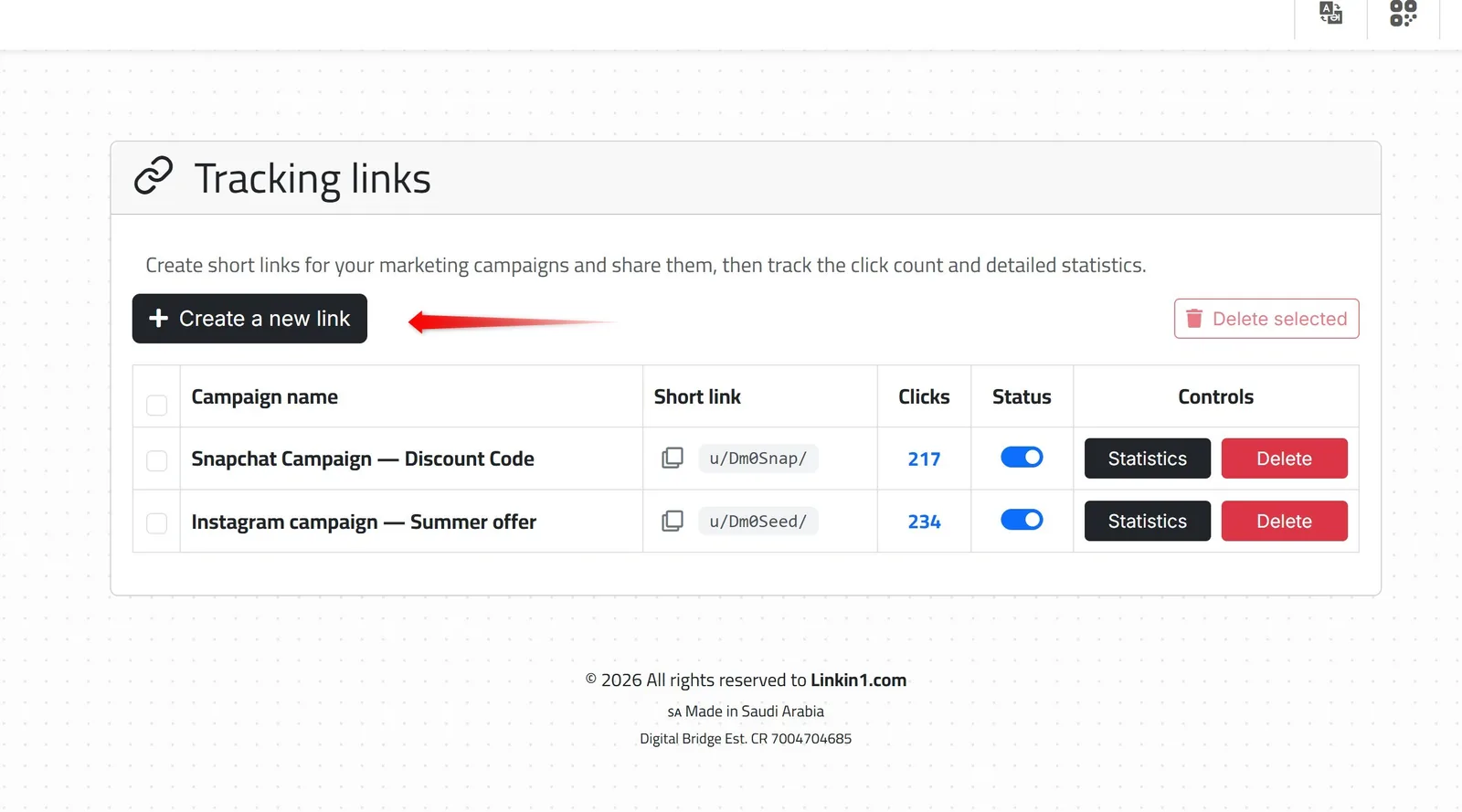
- You learn what a result costs. The paid Snapchat campaign brought 217 clicks; the free Instagram post brought 234. That comparison alone can redirect next month's budget.
- You learn which content works. A separate link per video or campaign tells you which idea was worth the effort.
- You learn where your audience actually is — which changes posting times and delivery offers.
- You can measure print. Put a distinct link on each flyer or ad and you finally know which one moved anyone.
Step 1: Install the Tracking Links extension
Open your Linkin1 dashboard, go to Extensions, scroll to the Analytics & Statistics section, and hit Install on the Tracking Links card.
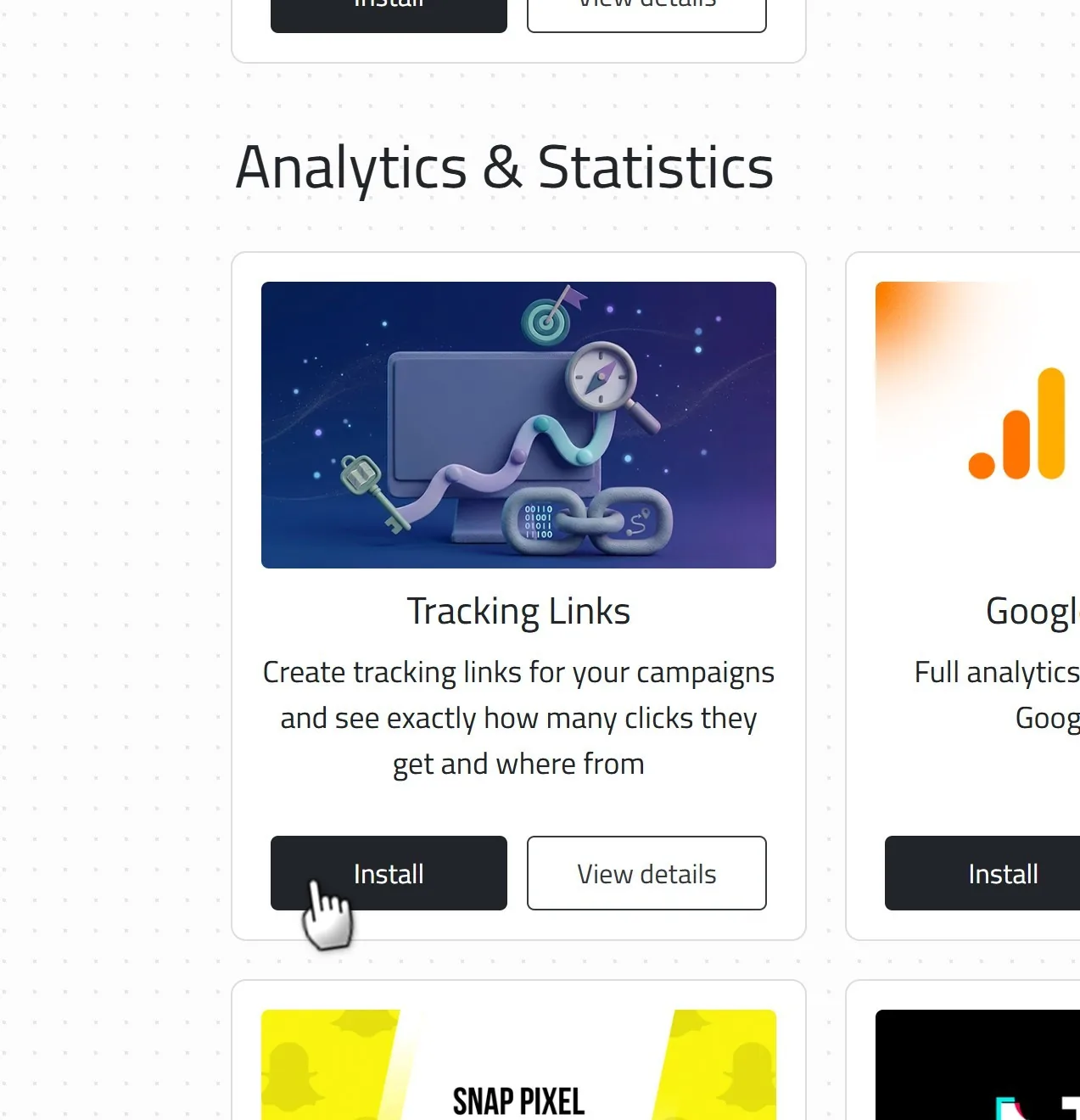
One important note before you go further: Tracking Links is exclusive to Linkin1 PRO. It is not available on the free plan or on Basic. In return, there is no cap on how many links you create while you are on PRO — make one per campaign, per video, per flyer, without counting.
Step 2: Create your first campaign link
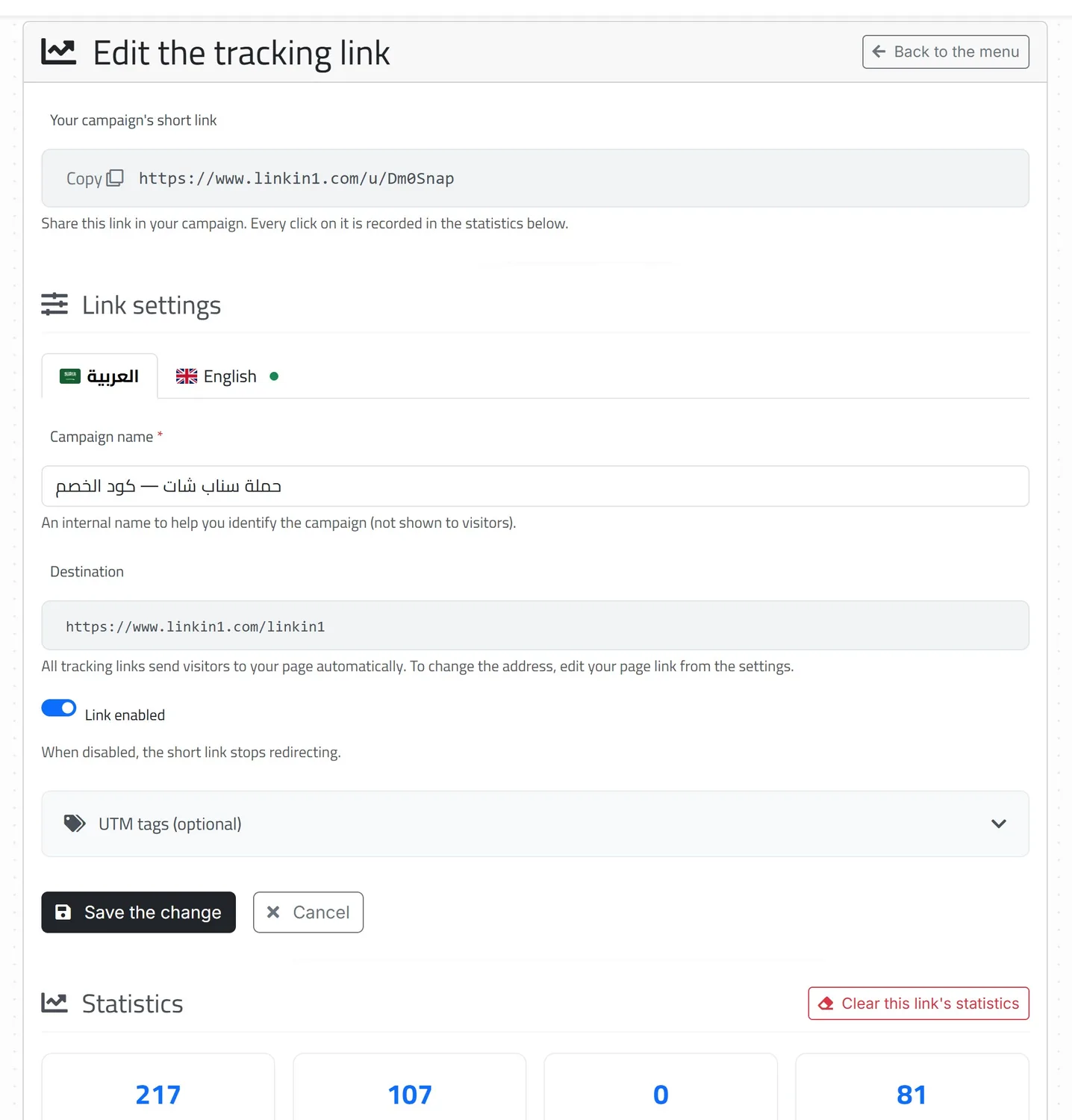
From the extension page, click "Create a new link". The form is deliberately short — the only required field is the campaign name:
- Campaign name — an internal label for you alone; it is never shown to visitors. Write whatever will still make sense in two months: "Snapchat Campaign — Discount Code" beats "link 3" by a mile. (You can also give it a translated name per language from the language tabs above the form.)
- Destination — display only, and it is your page, as explained above. To change it you edit your page link in settings.
- Link enabled — an on/off switch. Turning it off stops the short link redirecting, which is how you retire an expired offer without deleting its history.
- UTM tags (optional) — a collapsed section; more on it shortly.
The short code itself is generated automatically — seven random letters and digits. You cannot pick it, and it cannot be changed after creation. That is on purpose: a code you have already handed to thousands of followers must never shift under your feet.
Step 3: Give every channel its own link
This is where the payoff starts. Don't make one link and paste it everywhere — make one per place you want to measure, and copy it with the button beside it:
| Campaign name | Where it goes |
|---|---|
| Instagram bio | The link field on your profile |
| Snapchat Campaign — Discount Code | The swipe-up link in the paid campaign |
| TikTok — new product video | The video description |
| WhatsApp broadcast — customer list | The broadcast message |
| Email signature | The bottom of every message |
All your links appear in one list, newest first, each with its click counter, its status, and buttons for statistics and deletion. When it is time to tidy up, you can select several and delete them in one go.
What the statistics show for each link
Click Statistics next to any link to open its detail page. Every figure is live — there is no nightly rollup and no lag; what you see is computed from the database the moment the page loads. All dates and day boundaries are in Riyadh time.
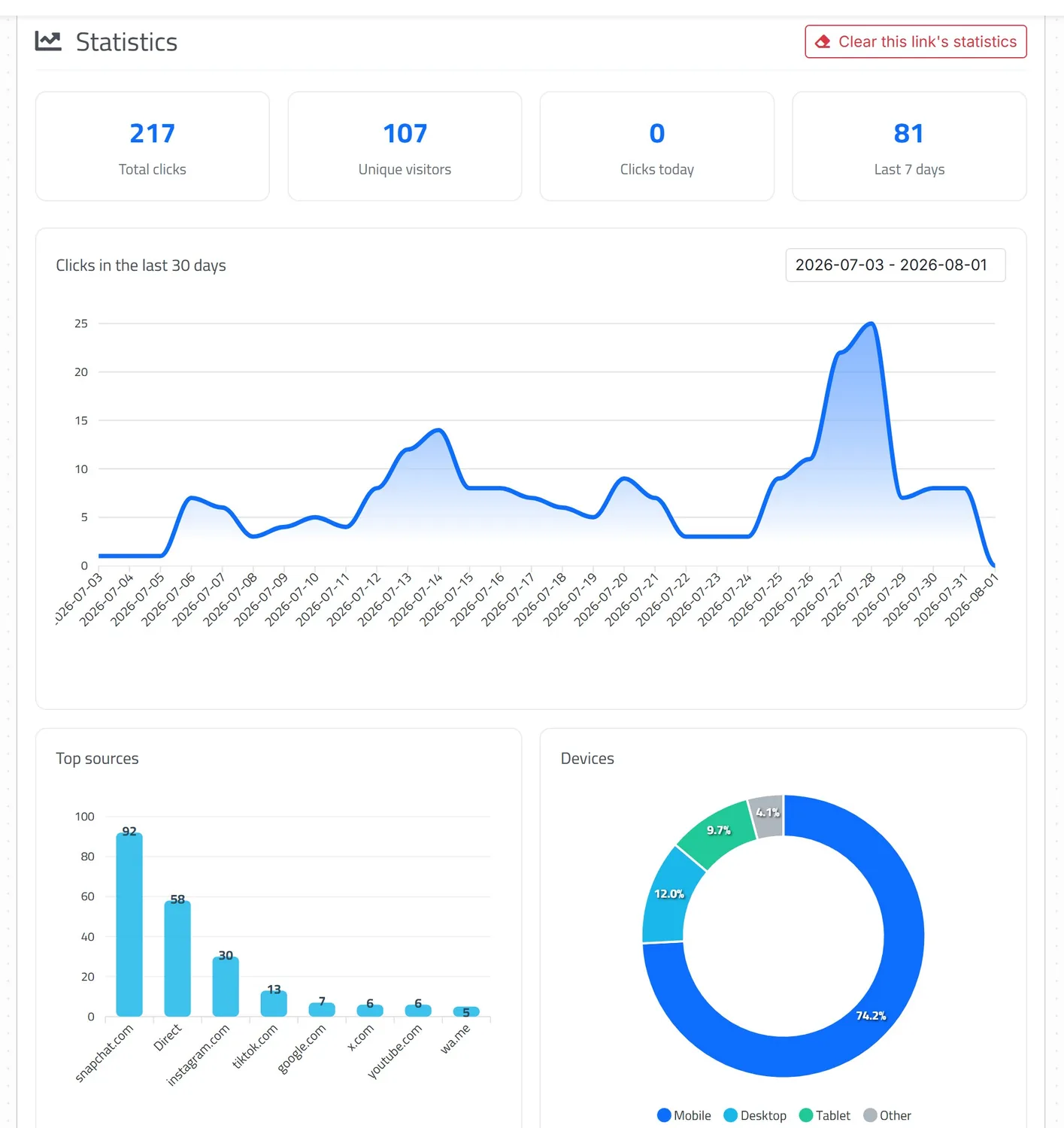
Four numbers sit at the top:
- Total clicks — every click since the link was created.
- Unique visitors — an estimate of people rather than clicks (the precise meaning is in the privacy section below).
- Clicks today — since midnight, Riyadh time.
- Last 7 days — today plus the six days before it.
And four sections below them:
- Clicks in the last 30 days — a chart showing the shape of the campaign over time: when it launched, when it faded. You can narrow the range with the date picker to read a particular week — noting that the picker filters within the thirty days on screen and does not fetch anything older.
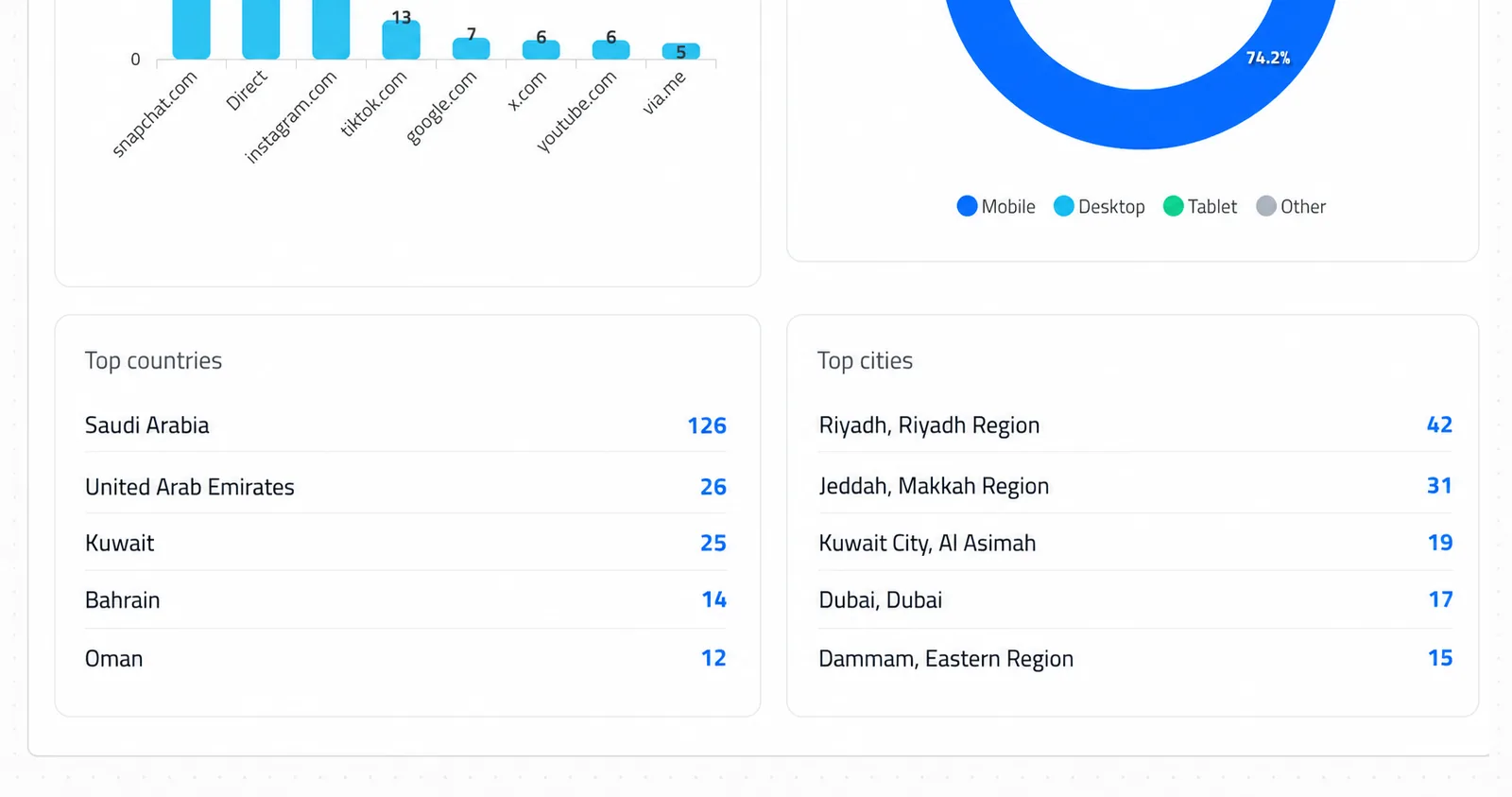
- Top sources — where the click came from; explained in detail below.
- Devices — a donut with four buckets: mobile, desktop, tablet, other. In the Gulf you will usually find mobile above 70%, which is a fact that should shape your page and your content.
- Top countries and top cities — two lists of the top five each, with cities named alongside their region ("Riyadh, Riyadh Region").
If you want to reset a campaign's counters and start measuring from zero, there is a "Clear this link's statistics" button that deletes its clicks and leaves the link itself working. It cannot be undone — which is why it asks you to confirm twice.
How "top sources" is calculated (and what "Direct" means)
The source is read from the Referer header the browser sends — that is, the site the visitor was on before they clicked. Only the host is stored (e.g. instagram.com), never the full page address.
And because names are shown exactly as they arrive, the chart lists real domains like snapchat.com, instagram.com, tiktok.com, x.com and wa.me — no icons, no prettified labels.
The bucket labelled Direct is every click that arrived with no source at all. That is completely normal and happens when:
- Someone types or pastes the link themselves.
- They open it from a messaging app like WhatsApp or Telegram.
- They open it inside an in-app browser that doesn't pass the referrer along.
- They scan a QR code — a camera is not a website, so it has no source to send.
So a large "Direct" share does not mean the measurement failed; it means that channel arrives by a route that doesn't announce itself. This is precisely why you make one link per channel: the link itself is your evidence, not the header. If you know /u/Dm0Snap was only ever published in the Snapchat campaign, then every click on it is Snapchat — even the ones filed under Direct.
What about UTM tags?
Inside the link form there is a collapsed section called UTM tags (optional) with three fields: utm_source, utm_medium and utm_campaign. Whatever you put there is appended automatically to your page address on redirect, making the final URL look like this:
/yourpage?utm_source=snapchat&utm_medium=cpc&utm_campaign=discount_code_2026
Let's be precise about their purpose: these tags are not for Linkin1's own statistics — everything described above works perfectly without them. They exist for external analytics tools such as Google Analytics, if you have one connected to your page, so the campaign shows up there by name instead of being buried under "direct".
If you don't use an external analytics tool, leave the fields empty and you lose nothing. If you do, note that only those three tags are supported here (there is no utm_term and no utm_content). One practical tip: stick to lowercase and a consistent naming pattern — snapchat, Snapchat and snap will be counted as three separate campaigns by any analytics tool.
Privacy: what we record — and what we don't
This section is worth reading slowly, because it is what separates this tool from the many free link shorteners whose business model is your visitors' data.
We do not store IP addresses. At all. Not in a table, not in a log. The address is used in memory for a moment and then it is gone.
Because we don't store it, "unique visitors" is counted differently: a hashed fingerprint (SHA-256) that cannot be reversed back to a person is derived from the address and the visitor's browser — and then, this is the important part, that fingerprint changes every day and differs from one link to the next. Two consequences follow:
- The same person cannot be followed across days, or matched between two campaigns. No profile is built about anybody.
- And in exchange — we'll say it plainly — a person who clicks on three different days counts as three unique visitors. Read the number as "the sum of daily unique visitors", not as the count of distinct people since the campaign began.
The rest of what is kept is deliberately minimal:
- The source host only (
instagram.com), never the full page URL they came from. - The device type only (mobile/desktop/tablet/other) — the full browser identifier string is not stored, which is why there is no browser or operating-system breakdown in the statistics.
- Country, region and city, resolved from a geographic database installed on our own servers — meaning your visitor's address is never sent to a third party to be looked up.
Known bots and crawlers are also excluded before anything is recorded, so your counter isn't inflated by traffic that was never human. That filter works from the declared user agent; it catches the common cases and does not claim to catch everything.
Limits worth knowing before you rely on it
Better to know these now than to discover them later:
- Every open counts as a click. There is no de-duplication window — reloading the page ten times is ten clicks. So always read "total clicks" against "unique visitors"; a wide gap means repeat opens, not new audience.
- The chart covers 30 days. The headline totals accumulate indefinitely, but the daily chart's window is a month. For long campaigns, note the numbers down at the end of each month.
- There is no data export — no CSV, no API, and no detailed per-click log.
- You cannot choose a custom code, and there is no automatic expiry date (though you can disable a link by hand at any time).
- Recording depends on staying on PRO. If you move off the plan, your links keep sending visitors to your page so nothing you published breaks — but no new clicks are recorded.
Six tips that make the numbers actually useful
- Name campaigns to a fixed pattern. "Channel — Campaign — Month" keeps a list of forty links readable six months later.
- One link per placement, not per platform. Your Instagram bio, your story and your paid post are three different places — and three numbers worth separating.
- Read the chart, not just the total. The shape of the curve tells you when a campaign's momentum died, which is the moment to post again.
- Compare campaigns over equal periods. A month-old campaign will always beat a week-old one; use "last 7 days" for a fair comparison.
- Don't delete a finished link — disable it. Deleting takes the campaign's history with it; disabling keeps it for the next comparison.
- Test the link yourself after creating it, then clear its statistics before the campaign launches, so you start from a clean zero.
- Don't forget the page itself. Knowing your best channel is worth little if the page it lands on is weak — read the guide to a professional bio link before you pour a budget into a campaign.
Frequently asked questions
In summary
Tracking links change the question from "how many visits did I get?" to "which of my efforts brought them?" — and that is the only version of the question you can act on. Create one link per channel, leave it running for two weeks, then open the list: you will know, in numbers, where to double down and where to stop spending.
And you get there without paying for it with your audience's privacy: no IP addresses stored, no profiles built across days, and no data handed to a third party.
The feature is part of Linkin1 PRO — install the extension from your dashboard and create your first campaign link today, then browse the rest of the guides on the Linkin1 blog.