Think about the last time you gave someone your number. They probably typed it into their phone in a hurry, or photographed a paper card they later misplaced, or saved you as "Mohammed restaurant" and left it at that. Two weeks later, when they actually needed to order something, they couldn't find your number — and they couldn't find your Instagram, your site, or your ordering link either.
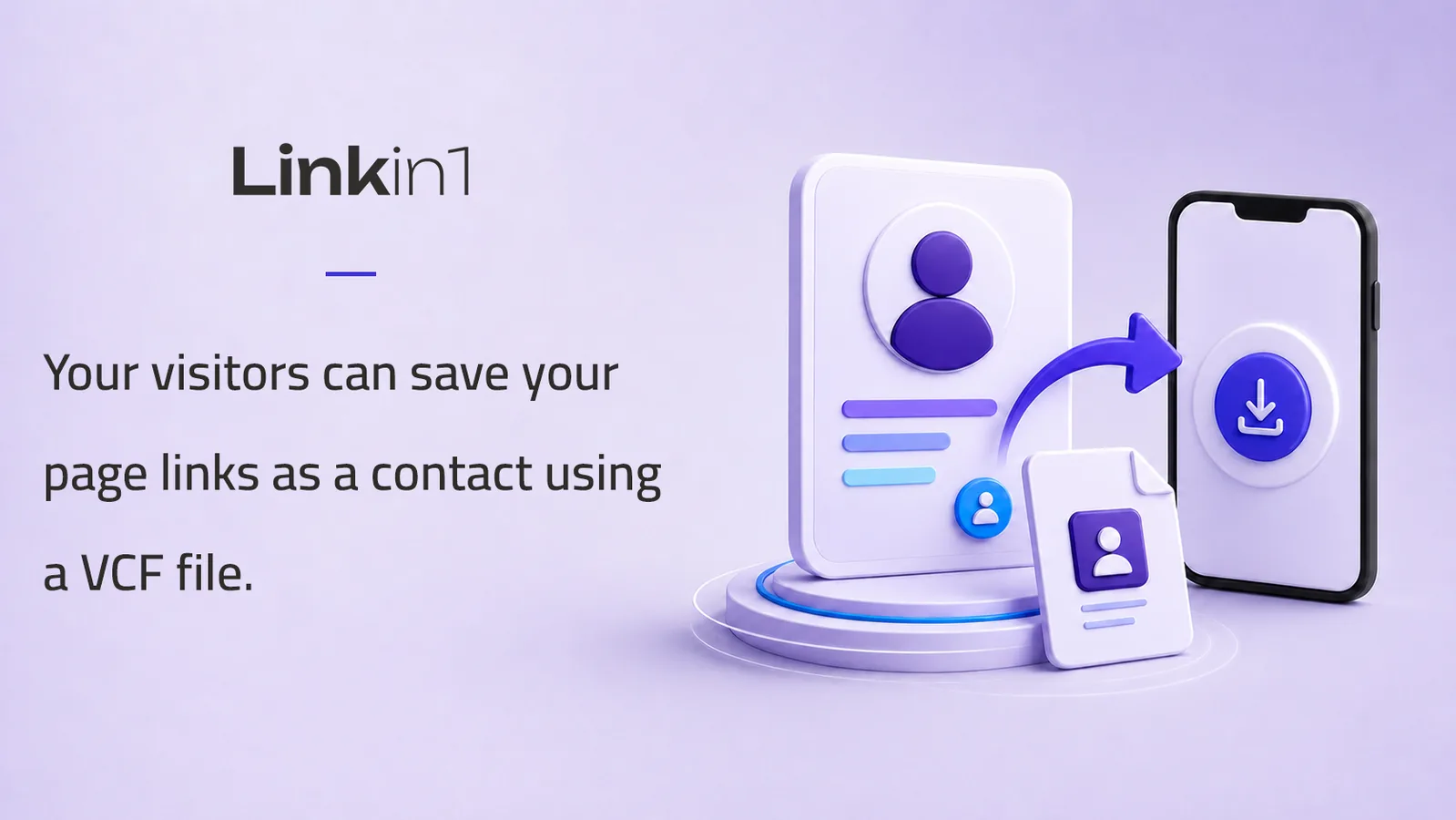
Linkin1 solves this with a single button: Save as contact. A visitor taps it on your page and a VCF file — a digital business card — downloads to their phone, saving you to their contacts with your name, your photo, and every one of your links at once. No typing, no copy-paste, no lost number.
Better still, the feature is available on every plan without exception — including the free one — and needs no setup and no switch. It has been on your page from day one.
What is a VCF file, exactly?
A VCF file (also called a vCard) is the worldwide standard format for a contact card. Every smartphone and every mail client has understood it for years: iPhone, Android, Gmail, Outlook, Google Contacts — they all open it and offer an "Add contact" button.
What makes it different from texting someone your number is that it is structured: every piece of information lands in its proper field. The name in the name field, the photo in the photo field, each link under its own label. That is why it appears in your customer's phone as a complete, tidy contact rather than a blob of pasted text.
How a visitor saves your page (two steps)
On your public page, the visitor opens the share sheet and finds — right below the sharing icons — a Save as contact section, with the line "Add the page and all its links to your contacts" underneath. They tap Save, the file downloads, and the phone opens it straight onto the add-contact screen.
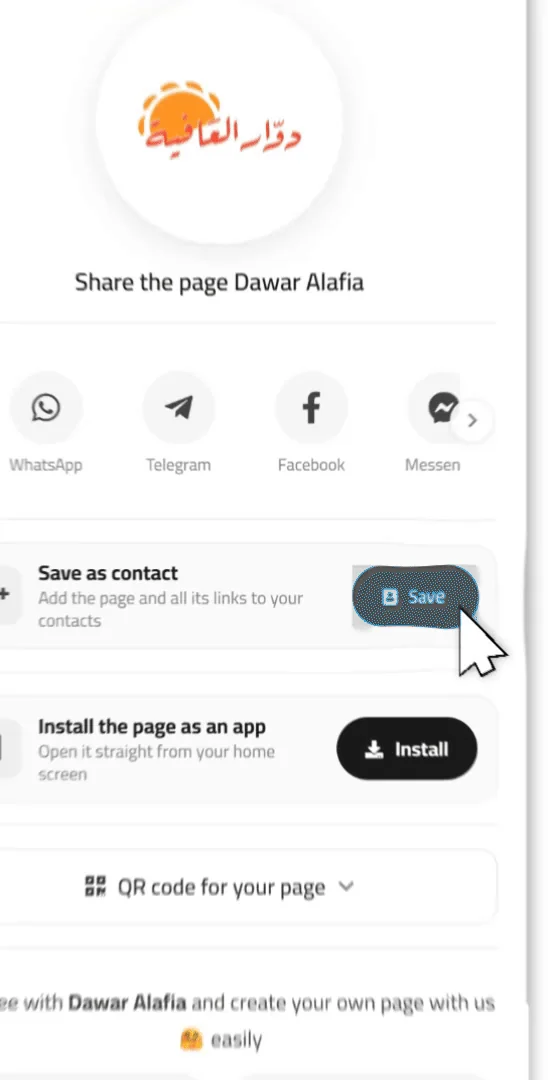
Here is the whole thing on a phone:

One note that explains something you may notice: the button appears on touch devices only — phones and tablets. So if you open your page on a desktop and can't find it, nothing is broken; saving a contact is a phone action and there is no point showing it on a desktop screen. Try it from your phone.
What exactly goes into the file?
This is the part that makes the feature more than "save a number". The card is built from your published page content, and includes:
- Your page name — written into both the name field and the organization field, so the card shows up in the phone as a business card rather than just a person's name.
- Your category — placed in the job-title field, so the customer can see from the card alone that you are a restaurant, a salon or a clinic. And if you wrote your own description in the free-text category box, it appears in your exact words.
- Your page description — added to the notes field.
- Your page photo — embedded inside the file itself as long as it is a reasonable size (otherwise attached as a link), so your picture shows next to your name in their contacts.
- Your Linkin1 page link — always, and it is what brings them back to you at any time.
- A phone number — if your page has a call button, it goes into the real phone field, so the customer can call you straight from the card.
- An email address — if your page has an email button, it goes into the email field.
- Your social accounts — Instagram, TikTok, Snapchat, WhatsApp, Telegram, YouTube, Facebook, LinkedIn and X — written into the social-profile field and added as labelled links, so they show up across every kind of contacts app rather than just some of them.
- The rest of your page buttons — every enabled button becomes a named link inside the card: "Order now", "Find us on the map", "Menu", and so on.
The practical result: your customer doesn't just save your number, they save your whole business — its picture, its links, and how to reach it — somewhere it won't get lost and won't need to be hunted down on Instagram again.
And one point worth stating plainly, because it concerns your own privacy: the WhatsApp number registered in your account settings never goes into the card. That number is how the platform contacts you, and it is never shown on your public page — so it does not leak into a downloadable file. The card contains only what is actually published on your page.
Who does this genuinely change things for?
- Restaurants and cafés — the customer saves the restaurant with its photo, its menu and its number, and next time reaches the menu from their contacts instead of a search.
- Clinics, salons and service centres — the booking number and the branch location on one card.
- Freelancers and professionals — a practical replacement for the paper card at meetings and trade shows: you can't leave it at the office and you can't run out.
- Instagram shops — anyone who saves you as a contact steps outside the algorithm's mercy; reaching them no longer depends on your post being shown.
- Events and exhibitions — put a QR code for your page on the table and a visitor saves you in two seconds, instead of swapping cards that get thrown away by evening.
Set your page up first, so the card comes out complete
Because the card is built from your page, its quality is your setup's quality. Five minutes before you start sharing it:
- Upload a clear page photo — your logo if you are a business; it is what the customer will see in their contacts.
- Write the page name the way you want it saved. "Dawar Alafia Restaurant" beats "dawar" — that is the name they will search their phone for later.
- Add a real call button if you want the card to carry a phone number. Without one you still get a perfectly valid card, just without a phone — and a WhatsApp link alone is saved as a link, not as a number.
- Give your buttons meaningful names. A button's name is the link's label inside the card, and "Book an appointment" is clearer than "Tap here".
- Write a short page description — it lands in the contact's notes and reminds the customer what you offer.
- Set your business category in settings so it appears in the job-title field.
Then try it yourself from your phone and save your own card to your contacts. What you see is exactly what your customer sees — and it is the fastest way to catch a missing photo or a vaguely named button.
Where to ask people to save you
The feature doesn't work on its own; you have to ask for it. The places that work best:
- At the end of a WhatsApp conversation with a customer: "Save us as a contact from the link — everything is in there."
- In an Instagram or Snapchat story alongside your page link.
- On a QR code on the receipt, the table, or the takeaway bag.
- At the end of a meeting, instead of "give me your number".
Frequently asked questions
In summary
Save as contact is small in size and large in effect: it turns a passing visitor into a saved contact on their phone — with your name, your photo, your number and all your links. It costs nothing, it is on every plan, and all it asks of you is a well-configured page and the habit of asking people to save you.
Open your page on your phone now, try the button yourself, and check that your card comes out the way you want your customers to see you. And if you haven't built your page yet, start with the complete guide to a professional bio link, then come back and set up your card.